
Google Colab Web UI
Decent performance and easiest setup for standard use.

Kaggle
Generous free GPU quotas. Great alternative if Google Colab is limited.
Decent performance and easiest setup for standard use.
Generous free GPU quotas. Great alternative if Google Colab is limited.

!!!
Installation may take a couple of minutes, be patient.
!!!
- Next go to the second cell and put your ngrok token in the text box and run it. If you dont have a ngrok acount sign up [here](https://ngrok.com/) and you can authenticate your ngrok tunnel agent [here](https://dashboard.ngrok.com/get-started/your-authtoken).
!!!
Installation may take a couple of minutes, be patient.
!!!
- Next go to the second cell and put your ngrok token in the text box and run it. If you dont have a ngrok acount sign up [here](https://ngrok.com/) and you can authenticate your ngrok tunnel agent [here](https://dashboard.ngrok.com/get-started/your-authtoken).

- (Optional) You can choose not to use Ngrok if you desire to by running the third cell.
- (Optional) You can choose not to use Ngrok if you desire to by running the third cell.

- Once you've run either the cell with or without ngrok a link under the cell will apear, click it and it will take you the WebUI.
***
:::content-center
### Kaggle
:::
!!!danger Kaggle Service
**Check the [Kaggle Glossary](https://docs.aihub.gg/extra/glossary/#kaggle) for more info on Free Tier, Limits, Verification, Pricing and other things.**
!!!
#### Account Setup
- Start by making an account [here](https://www.kaggle.com/account/login?phase=startRegisterTab&returnUrl=%2F).
- Once you've run either the cell with or without ngrok a link under the cell will apear, click it and it will take you the WebUI.
***
:::content-center
### Kaggle
:::
!!!danger Kaggle Service
**Check the [Kaggle Glossary](https://docs.aihub.gg/extra/glossary/#kaggle) for more info on Free Tier, Limits, Verification, Pricing and other things.**
!!!
#### Account Setup
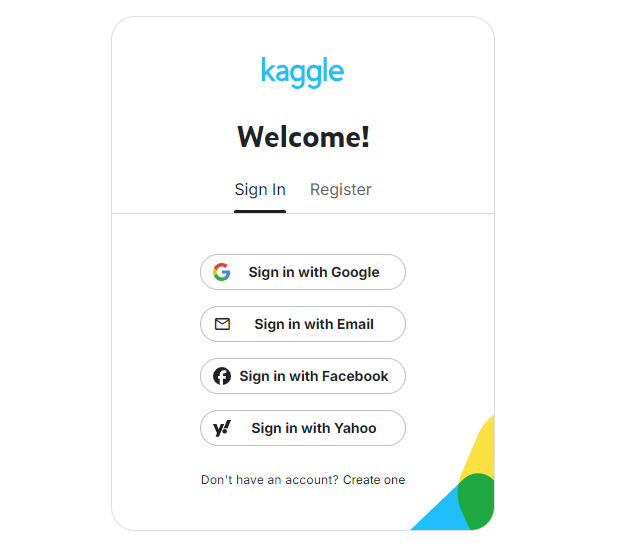
- Start by making an account [here](https://www.kaggle.com/account/login?phase=startRegisterTab&returnUrl=%2F).
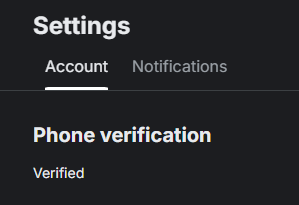
 - Verify your account with a phone number. This is required to enable the "Internet" option in your notebooks, which is necessary for downloading models and dependencies.
 ***
#### Installation & Setup :icon-book:
- Go to the [AICoverMaker Kaggle notebook](https://www.kaggle.com/code/eddycrack864/rvc-ai-cover-maker-ui) and click `Copy & Edit` on the top right.
***
#### Installation & Setup :icon-book:
- Go to the [AICoverMaker Kaggle notebook](https://www.kaggle.com/code/eddycrack864/rvc-ai-cover-maker-ui) and click `Copy & Edit` on the top right.

- Once you're in the notebook run the first installation cell. Once it's done it will output `Requirements installed`.
- Once you're in the notebook run the first installation cell. Once it's done it will output `Requirements installed`.

!!!
Installation may take a couple of minutes, be patient.
!!!
- Next go to the second cell and put your Ngrok token in the `TOKEN HERE` spot and run it. If you dont have a Ngrok acount sign up [here](https://ngrok.com/) and you can authenticate your ngrok tunnel agent [here](https://dashboard.ngrok.com/get-started/your-authtoken).
!!!
Installation may take a couple of minutes, be patient.
!!!
- Next go to the second cell and put your Ngrok token in the `TOKEN HERE` spot and run it. If you dont have a Ngrok acount sign up [here](https://ngrok.com/) and you can authenticate your ngrok tunnel agent [here](https://dashboard.ngrok.com/get-started/your-authtoken).
 - Once you've run the final cell a ngrok link will appear under the cell, click it and it will take you the WebUI.
***
## Downloading Music & Models
***
#### Music Download
- When in the UI look at the top left and look for the tab named `Download Music` and click it.
- Once you've run the final cell a ngrok link will appear under the cell, click it and it will take you the WebUI.
***
## Downloading Music & Models
***
#### Music Download
- When in the UI look at the top left and look for the tab named `Download Music` and click it.

- Then put the song you want to download in the text box and click download.
- Then put the song you want to download in the text box and click download.
 ***
#### Model Download
- In the UI look at the top left and look for the tab named `Download Model` and click it.
***
#### Model Download
- In the UI look at the top left and look for the tab named `Download Model` and click it.

- Then put the model you want to download in the text box and click download.
- Then put the model you want to download in the text box and click download.

- You can also drag and drop your model in the `Drop files` box to upload them directly.
***
## Inference
Please use our [Inference Settings guide](https://docs.aihub.gg/rvc/resources/inference-settings/) to find out the inference settings do what.
**TTA** - results in longer separation time, it gives a little better SDR score but hard to tell if it's really audible in most cases". it “means "test time augmentation", it will do 3 passes on the audio file instead of 1. 1 pass with be with original audio. 1 will be with inverted stereo (L becomes R, R become L). 1 will be with phase inverted and then results are averaged for final output.
***
######
:::content-center
#### `You have reached the end.`
[!badge variant="info" size="xl" corners="pill" icon="paper-airplane" iconAlign="right" text="Report Issues"](https://docs.aihub.gg/contributions/)
:::
- You can also drag and drop your model in the `Drop files` box to upload them directly.
***
## Inference
Please use our [Inference Settings guide](https://docs.aihub.gg/rvc/resources/inference-settings/) to find out the inference settings do what.
**TTA** - results in longer separation time, it gives a little better SDR score but hard to tell if it's really audible in most cases". it “means "test time augmentation", it will do 3 passes on the audio file instead of 1. 1 pass with be with original audio. 1 will be with inverted stereo (L becomes R, R become L). 1 will be with phase inverted and then results are averaged for final output.
***
######
:::content-center
#### `You have reached the end.`
[!badge variant="info" size="xl" corners="pill" icon="paper-airplane" iconAlign="right" text="Report Issues"](https://docs.aihub.gg/contributions/)
:::