
GPT-SoVITS
Last update: Mar 8, 2024
Introduction
GPT-SoVITS is an open-source repository focused on TTS & cross-language inference, with a Colab port coming soon. Credits to RVC-Boss.
Currently it only supports Chinese, English & Japanese. More languages are coming soon.
You'll require great specs & a NVIDIA GPU with >=6G VRAM to run it smoothly. Otherwise, use the Colab.
This guide is a translation of the original one with a few tweaks, made by Delik. [ Discord: @delik - Wechat: Dellikk ]
Installation
1. Download prezip
- Download the prezip of the latest version here.
2. Extract
- Unzip the folder. It's advisable to use 7-ZIP to do so.
3. Launch
- Open the folder & run
go-web.batto open WebUI.
Training
1. Prepare dataset
The dataset should be between 1 - 30 minutes. But you must prioritize quality over quantity.
For the best results, ensure the audio is properly cleaned, free of undesired noises & distortions.
GPT-So-VITS is made for TTS only, so it's also best to remove any singing/muffly voice parts.
Learn how to clean datasets.
2. Audio Slicer
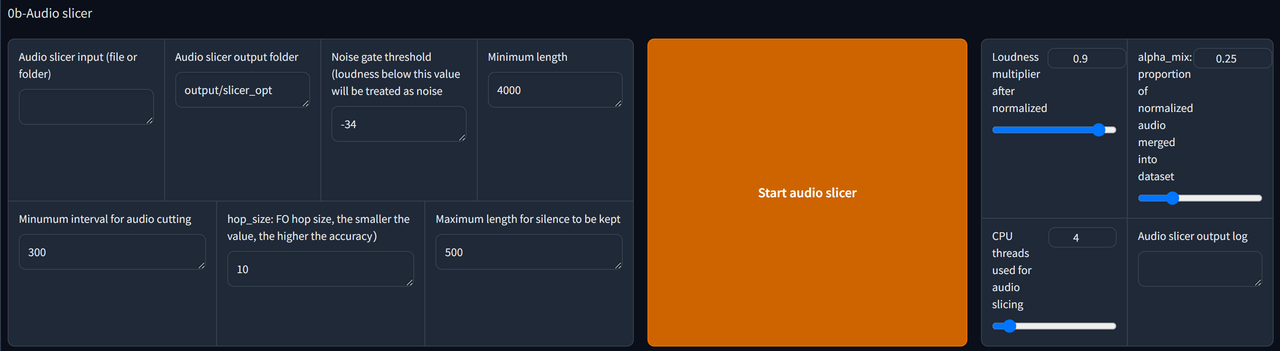
Copy the path file of your dataset & paste it in the Audio slicer input bar.
Create a new folder somewhere. Copy its path folder & paste in Audio slicer output. This is where the outputs are getting stored.
Adjust the parameters if needed.
Finally, click Start Audio Slicer to complete this step.
3. ASR

The Input folder path should be the same as Audio slicer output. Jst copy the path & paste it inside the bar.
If the dataset is in English/Japanese, use
Faster-Whisper large v3.If it's in Chinese, use
达摩ASR.Then click
Start batch ASR.If you run GPT-SoVITS for the first time, you might need to wait for a few minutes for it to download the ASR model you select.
Finally, locate the
.listfile & copy the path. It will be in output/asr_opt, if you didn't change the folder for Output folder path.
4. Text Labelling (optional)

Paste the
.listfile path into .list annotation file path.Tick Open labelling WebUI to open Text Labelling WebUI. A new tab will open.
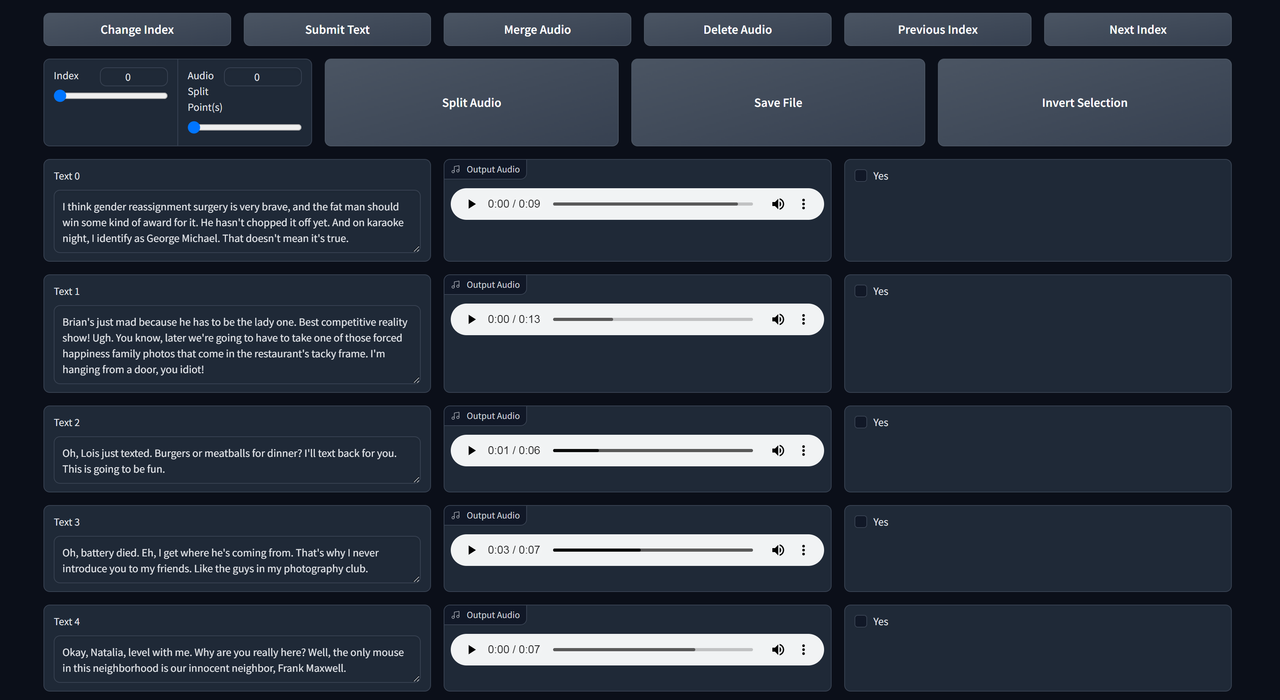
Listen to each clip & edit the text if it's not transcribed properly.
The functions are self-explanatory. Use next index & previous index to check the next/previous page.
If you make changes, remember to save file & submit text.
5. Formatting
Click 1-GPT-SOVITS-TTS & 1A-Dataset formatting to enter the training page.

Input the name of your model in Experiment/model name, & the
.listfile path to Text labelling file.Scroll down to the end & start One-click formatting to begin formatting.
6. SoVITS Training
- Scroll up then click 1B-Fine-tuned training.

Recommended settings for SoVITS training:
- Batch size
2| Use1if the GPU has 6GB VRAM.- Total epochs
8- Text model learning rate weighting
- <=
0.4 - Save frequency
4-
-
- After that, click Start SoVITS training
7. GPT Training
Recommended settings for GPT training:
- Batch size
- 2 (1 if your gpu has 6G vram)
- Total epochs
- 10
- Save frequency
- 5
- DPO training
- disabled (explained later)
-
-
After that, click Start GPT training
You can't train both simultaneously unless you have 2 or more GPUs.
DPO training (optional)
DPO training greatly improves the performance (not audio quality) & stability of the model.
It can infer more text at once without slicing & it's less prone to errors (like repeating/skipping words) when inferring.
For this, you'll requiere:
- A GPU with 12G VRAM or more.
- A very high quality dataset (you need to do text labelling) to enable this.
- Using a batch size of 1. Keep the other settings same as above.
- Otherwise, this will worsen the model.
Inference

Go to the 1C-inference tab.
Press refreshing model paths & select your models from the dropdowns respectively.
Tick Open TTS inference WEBUI.

Upload a clip for reference audio (must be 3-10 seconds). Then fill-in the Text for reference audio, which is what does the character say in the audio. Choose the language on the right.
The reference audio is very important as it determines the speed & emotion of the output. Try different ones to polish your output.
You can reopen the text proofreading tool to download the reference audio, and copy & paste the text for reference audio.
Hover above the "duration" to adjust the length of the reference audio, & hover above "it" to delete the current reference audio.
No reference text mode exists, but it's not advisable to use it. It affects the quality a lot.
Fill the Inference text & set the Inference language, then click
Start inference.If the text is too long choose the options in How to slice the sentence.
If you did not get your desired output, you can infer it again or change reference audio and/or adjust GPT parameters.