
GPT-SoVITS
Last update: Mar 8, 2024
Introduction
-
GPT-SoVITS is an open-source repository focused on TTS & cross-language inference, with a Colab port coming soon. Credits to RVC-Boss.
-
Currently it only supports Chinese, English & Japanese. More languages are coming soon.
-
You'll require great specs & a NVIDIA GPU with >=6G VRAM to run it smoothly. Otherwise, use the Colab.
-
This guide is a translation of the original one with a few tweaks, made by Delik. [ Discord: @delik - Wechat: Dellikk ]
Installation
1. Download prezip
- Download the prezip of the latest version here.
2. Extract
- Unzip the folder. It's advisable to use 7-ZIP to do so.
3. Launch
- Open the folder & run
go-web.batto open WebUI.
Training
1. Prepare dataset
-
The dataset should be between 1 - 30 minutes. But you must prioritize quality over quantity.
-
For the best results, ensure the audio is properly cleaned, free of undesired noises & distortions.
-
GPT-So-VITS is made for TTS only, so it's also best to remove any singing/muffly voice parts.
-
Learn how to clean datasets.
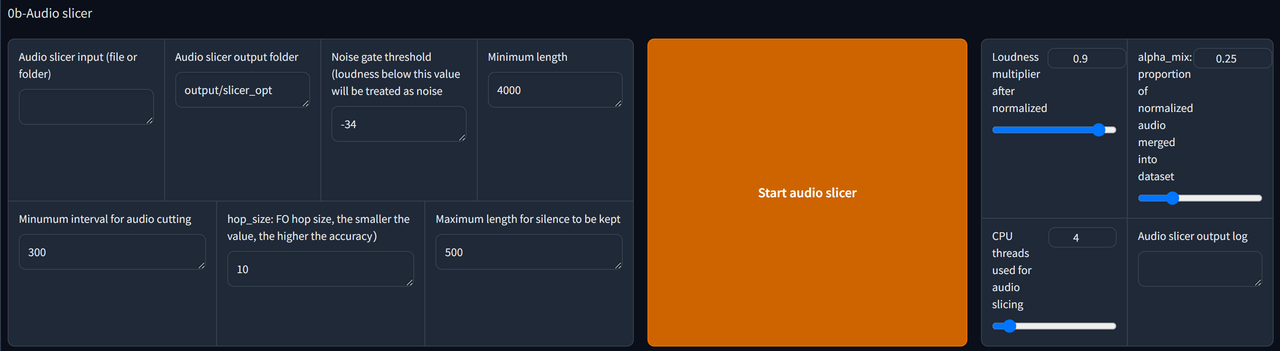
2. Audio Slicer
-
Copy the path file of your dataset & paste it in the Audio slicer input bar.
-
Create a new folder somewhere. Copy its path folder & paste in Audio slicer output. This is where the outputs are getting stored.
-
Adjust the parameters if needed.
-
Finally, click Start Audio Slicer to complete this step.
3. ASR

-
The Input folder path should be the same as Audio slicer output. Jst copy the path & paste it inside the bar.
-
If the dataset is in English/Japanese, use
Faster-Whisper large v3.If it's in Chinese, use
达摩ASR. -
Then click
Start batch ASR.If you run GPT-SoVITS for the first time, you might need to wait for a few minutes for it to download the ASR model you select.
-
Finally, locate the
.listfile & copy the path. It will be in output/asr_opt, if you didn't change the folder for Output folder path.
4. Text Labelling (optional)

-
Paste the
.listfile path into .list annotation file path. -
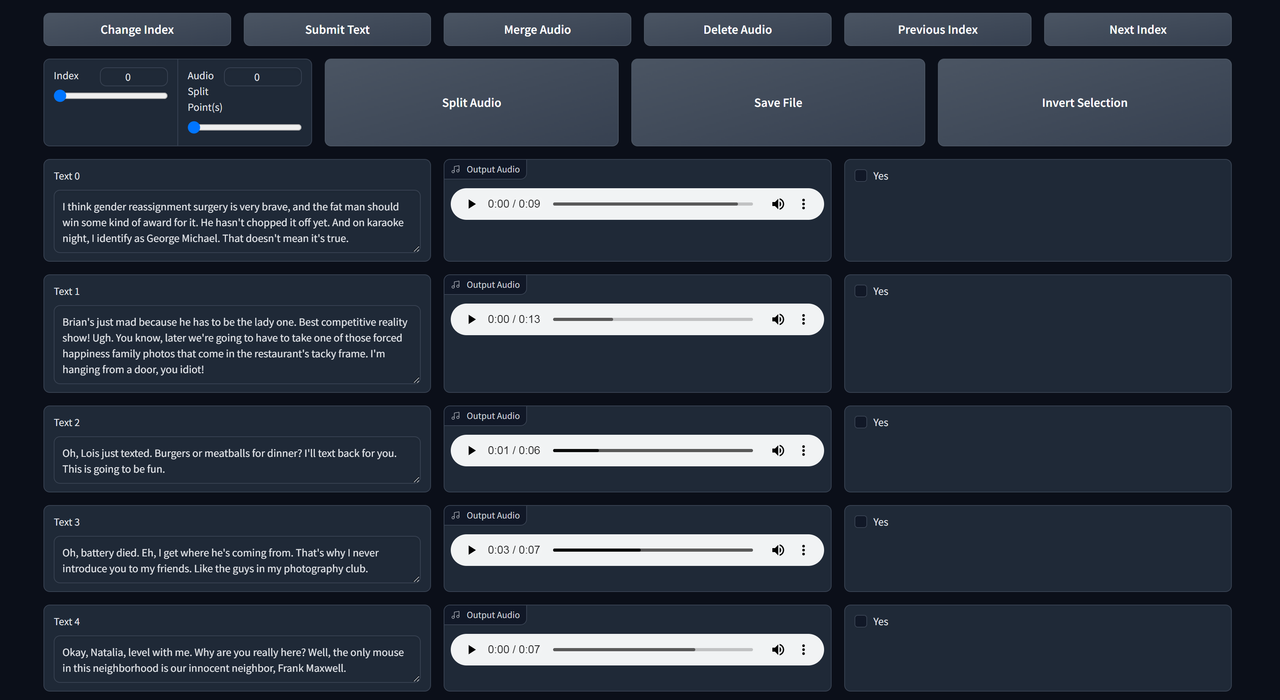
Tick Open labelling WebUI to open Text Labelling WebUI. A new tab will open.
-
Listen to each clip & edit the text if it's not transcribed properly.
-
The functions are self-explanatory. Use next index & previous index to check the next/previous page.
-
If you make changes, remember to save file & submit text.
5. Formatting
-
Click 1-GPT-SOVITS-TTS & 1A-Dataset formatting to enter the training page.

-
Input the name of your model in Experiment/model name, & the
.listfile path to Text labelling file. -
Scroll down to the end & start One-click formatting to begin formatting.
6. SoVITS Training
- Scroll up then click 1B-Fine-tuned training.

-
Recommended settings for SoVITS training:
- Batch size
2| Use1if the GPU has 6GB VRAM.- Total epochs
8- Text model learning rate weighting
- <=
0.4 - Save frequency
4-
-
- After that, click Start SoVITS training
7. GPT Training
-
Recommended settings for GPT training:
- Batch size
- 2 (1 if your gpu has 6G vram)
- Total epochs
- 10
- Save frequency
- 5
- DPO training
- disabled (explained later)
-
-
After that, click Start GPT training
You can't train both simultaneously unless you have 2 or more GPUs.
DPO training (optional)
-
DPO training greatly improves the performance (not audio quality) & stability of the model.
-
It can infer more text at once without slicing & it's less prone to errors (like repeating/skipping words) when inferring.
-
For this, you'll requiere:
- A GPU with 12G VRAM or more.
- A very high quality dataset (you need to do text labelling) to enable this.
- Using a batch size of 1. Keep the other settings same as above.
- Otherwise, this will worsen the model.
Inference

-
Go to the 1C-inference tab.
-
Press refreshing model paths & select your models from the dropdowns respectively.
-
Tick Open TTS inference WEBUI.

-
Upload a clip for reference audio (must be 3-10 seconds). Then fill-in the Text for reference audio, which is what does the character say in the audio. Choose the language on the right.
-
The reference audio is very important as it determines the speed & emotion of the output. Try different ones to polish your output.
-
You can reopen the text proofreading tool to download the reference audio, and copy & paste the text for reference audio.
-
Hover above the "duration" to adjust the length of the reference audio, & hover above "it" to delete the current reference audio.
-
No reference text mode exists, but it's not advisable to use it. It affects the quality a lot.
-
-
Fill the Inference text & set the Inference language, then click
Start inference.-
If the text is too long choose the options in How to slice the sentence.
-
If you did not get your desired output, you can infer it again or change reference audio and/or adjust GPT parameters.
-