
Applio
Last update: June 27, 2026

Introduction
-
Applio is a Fork of Original/Mainline RVC, developed by the IA Hispano team.
-
It's liked for its great UI, performance improvements and lots of extra features, such as TTS (with RVC models too), plugins, automatic model upload, customizable theme & more.
-
Because of its user-friendly experience & active development, it's considered to be one of the best forks.
-
Applio has it's own Applio Docs, which may have more info about the tool.
"Official Applio Discord Moved"
The original IA Hispano (Applio) Discord server has migrated.
- What happened: To leave behind thousands of inactive accounts and scam bots, the development team consolidated their resources and moved official Applio support over to their former Dione (another IA Hispano Archived Project about automated AI Installations, kind of like Pinokio) server.
- The old server: The old, bloated server was transferred/sold to prominent Argentinean streamer and ex-VTuber Nimu Spacecat VTuber, who has rebranded it to AI Maxxing, an AI News Hub. It has no affiliation with Applio development.
- Where to go: For official Applio support, updates, and open-source RVC community channels, please use their new permanent Discord server:
- 👉 Join the New Official Applio Discord
Is this Program Safe?
RVC Models are PyTorch Models, a Python library used for AI. PyTorch uses serialization via Pythons' Pickle Module, converting the model to a file. Since pickle can execute arbitrary code when loading a model, it could be theoretically used for malware, but this software has a built-in feature to prevent code execution along the model. Also, HuggingFace has a Security Scanner which scans for any unsafe pickle exploits and uses also ClamAV for scanning dangerous files.
Pros & Cons
The pros & cons are subjective to your necessities.
- Very complete
- Has an active development
- Currently stable
- Faster interface
- TTS features
- Automatic model upload
- User-friendly UI
- TensorBoard included
- Extra features: (plugins, model fusion, etc)
- Doesn't support: Intel GPUs, ARM64 CPUs, NPUs.
System & Hardware Requirements
Check if you meet the requirements to run it locally.
Download & Installation
Before Downloading:
- Don't put it in a folder with privileged access.
- Don't run the run-install.bat as an administrator.
- Make sure the path does not contain any spaces or special characters.
- Deactivate your antivirus and firewall to avoid missing dependencies.
Nvidia on Windows (Precompiled)
RTX 5000 Series Users require version 3.3.0 or newer.
-
The easiest way to download Applio is by going to Applio's Hugging Face repo, and clicking the [ download ] button on the right-hand side.
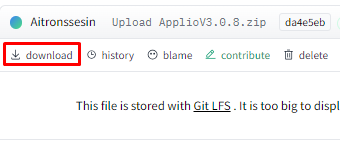
- Unzip the folder. This may take a few minutes.
-
Open Applio's folder & execute
run-applio.bat.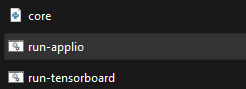
- A console tab will appear, and after a moment your default browser, with Applio ready to use.
Don't close the console until you're done using it, or it will stop working.
Linux & macOS
-
The easiest way to download Applio is by going to Applio's Hugging Face repo, and clicking the [ download ] button on the right-hand side.
- Unzip the folder. This may take a few minutes.
- Make sure you have Python 3.10.12 or 3.11.x installed. You can check your version by running
python --version. - Open a terminal in the Applio directory you just extracted.
- Run the commands corresponding to your Linux distribution:
apt install python3.10-venv -y
python -m venv .venv
find ".venv" -type f -exec sed -i -e 's/\r$//' -e "s|/home/runner/work/Applio/Applio|$(pwd)|g" -e "s|/.venv/bin/python|/.venv/bin/$(basename $(which python))|g" {} +
sudo pacman -S python-virtualenv --noconfirm
python -m venv .venv
find ".venv" -type f -exec sed -i -e 's/\r$//' -e "s|/home/runner/work/Applio/Applio|$(pwd)|g" -e "s|/.venv/bin/python|/.venv/bin/$(basename $(which python))|g" {} +sudo dnf install python3-virtualenv -y
python -m venv .venv
find ".venv" -type f -exec sed -i -e 's/\r$//' -e "s|/home/runner/work/Applio/Applio|$(pwd)|g" -e "s|/.venv/bin/python|/.venv/bin/$(basename $(which python))|g" {} +- Run Applio
- In the terminal, run the following commands to make the script executable and launch the application:
chmod +x run-applio.sh
./run-applio.sh
- A console tab will appear, and after a moment your default browser, with Applio ready to use.
Don't close the console until you're done using it, or it will stop working.
AMD on Windows (Precompiled Fix)
"AMD Compatibility Note"
AMD drivers update frequently and often break Zluda (the CUDA bridge).
- If you are on very new drivers (Adrenalin 25.5.1+), you must use the latest available HIP SDK.
- If your setup breaks after a driver update, check the AI HUB Discord or the Applio Assets repo for updated patch scripts.
For Adrenalin 25.5.1 driver or newer
-
Download a compiled version of Applio v3.5.0 or newer from the Hugging Face repo, and unzip it.
-
Download and install the latest stable HIP SDK from the AMD ROCm Hub.
- Important: Install components but exclude/deselect the video driver at the bottom of the installer list.
-
Add the
binfolder of your installed HIP SDK to your System Environment Variables (Path):C:\Program Files\AMD\ROCm\<YOUR_VERSION>\bin -
Open a command line (CMD) inside the Applio folder and run:
env\python -m pip uninstall torch torchvision torchaudio env\python -m pip install torch torchvision torchaudio --upgrade --index-url https://download.pytorch.org/whl/cu118 -
Download the patch file corresponding to your installed HIP SDK version from the Applio Assets repo and
run-applio-amd.bat. -
Edit the file located at
rvc/lib/zluda.py. Replace the content with the following:import torch if torch.cuda.is_available() and torch.cuda.get_device_name().endswith("[ZLUDA]"): # disabling unsupported cudnn torch.backends.cudnn.enabled = False torch.backends.cuda.enable_flash_sdp(False) torch.backends.cuda.enable_math_sdp(True) torch.backends.cuda.enable_mem_efficient_sdp(False) -
Run your downloaded patch script, then run
run-applio-amd.bat.
- Download and install the VC++ Runtime.
- First, check the official System Requirements on the AMD ROCm™ documentation site.
- Install the HIP SDK version recommended in your documentation from the AMD ROCm Hub.
- Install v5.7.1 HIP SDK from the AMD ROCm Hub.
- Download the correct archive for your GPU:
- For 6700, 6700XT, 6750XT, download the gfx1031 archive.
- For 6600, 6600XT, 6650XT, download the gfx1032 archive.
- Navigate to
C:\Program Files\AMD\ROCm\5.7\bin\rocblas\and rename thelibraryfolder tolibrary.old. - Create a new, empty folder named
libraryin its place. - Unzip the content of the archive you downloaded into this new
libraryfolder.
- Find your GPU's
gfxNNNNvalue (search "techpowerup your_gpu_name" and check "Shader ISA"). -
Follow the steps for your corresponding
gfxvalue:gfx803, gfx900, gfx906, gfx1010, gfx1011, gfx1012, gfx1030, gfx1100, gfx1101, gfx1102- Install v5.7.1 HIP SDK.
- Download this archive.
- Navigate to
C:\Program Files\AMD\ROCm\5.7\bin\rocblas\and rename thelibraryfolder tolibrary.old. - Unzip the content of the archive directly into the
C:\Program Files\AMD\ROCm\5.7\bin\rocblas\folder.
Other GPUs - Visit this repository and follow the instructions.
-
Download a compiled version of Applio (v3.2.5 or higher).
-
Open a Command Prompt in the Applio folder. Run the following to install the correct PyTorch version:
env\python -m pip uninstall torch torchvision torchaudio
env\python -m pip install torch==2.3.1 torchvision==0.18.1 torchaudio==2.3.1 --upgrade --index-url https://download.pytorch.org/whl/cu118
-
Navigate to the
assets\zludafolder inside your Applio directory. -
Move all
.batfiles from this folder to the main (root) Applio folder. -
Run the patch file that corresponds to your installed HIP SDK version.
-
Add your HIP SDK
bindirectory to your Path environment variable. -
Run
run-applio-amd.bat.
"Check your GPU Index"
It's assumed your primary AMD GPU has an index of 0. If you have an iGPU listed first in Device Manager, edit run-applio-amd.bat and change the index from "0" to "1".
"Initial Compilation Will Be Slow"
The first time you run a task, Applio may appear to freeze for 15-20 minutes. This is normal. Zluda is compiling kernels.
- A console tab will appear, and after a moment your default browser, with Applio ready to use.
Don't close the console until you're done using it, or it will stop working.
Upload Models
1. Upload voice model.
-
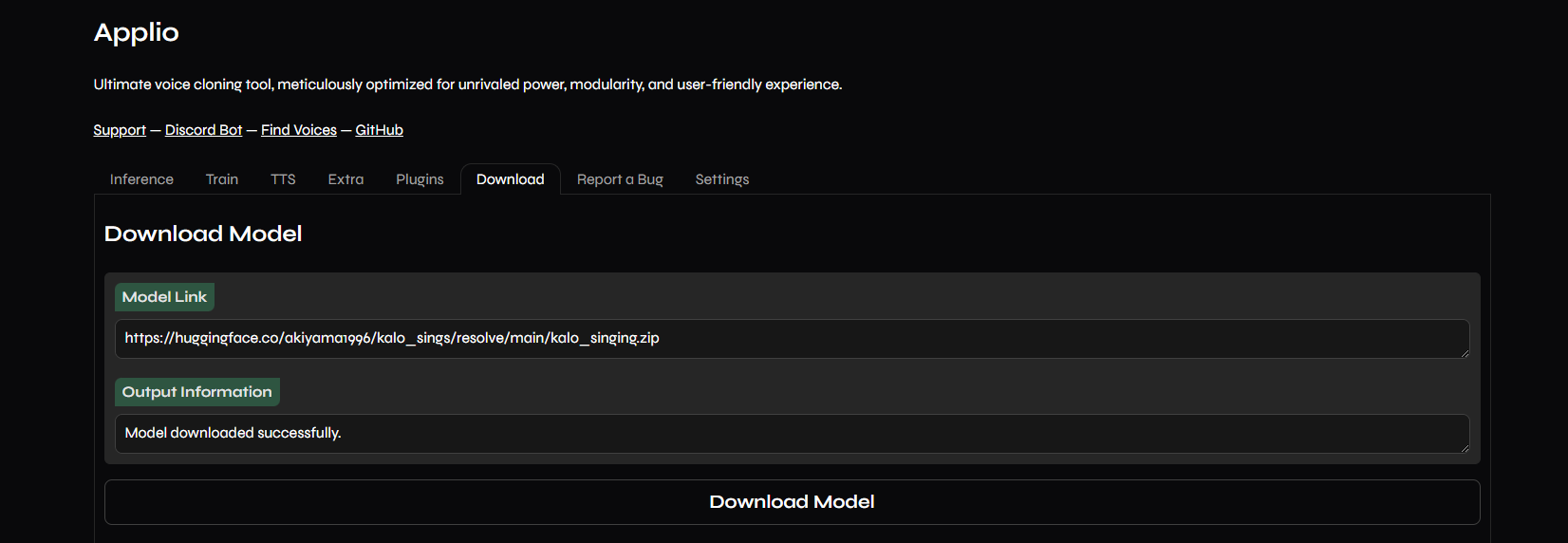
Go to the Download tab.
You have two ways of uploading it: through its link or manually inputting its files.Link -
Go to the Download tab & paste the link of the model in the
Model Linkbar. It must be from Hugging Face or Google Drive.
-
Press
Download Model.
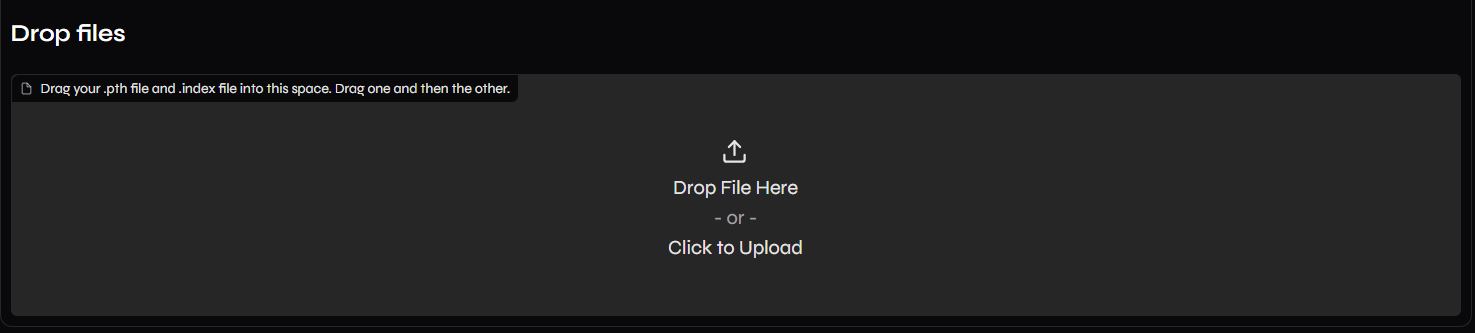
Manually -
Drag & drop the model's .PTH in the Drop files box below.
-
Then drag the .INDEX.
-
Inference
1. Select voice model.
-
Return to the Inference tab & click the
Refreshbutton on the right.
-
Select your model in the
Voice Modeldropdown.
2. Input vocals.
-
With Applio you can convert audios individually or in batches:
Single file -
Drag & drop the audio or click the upload box to search it.
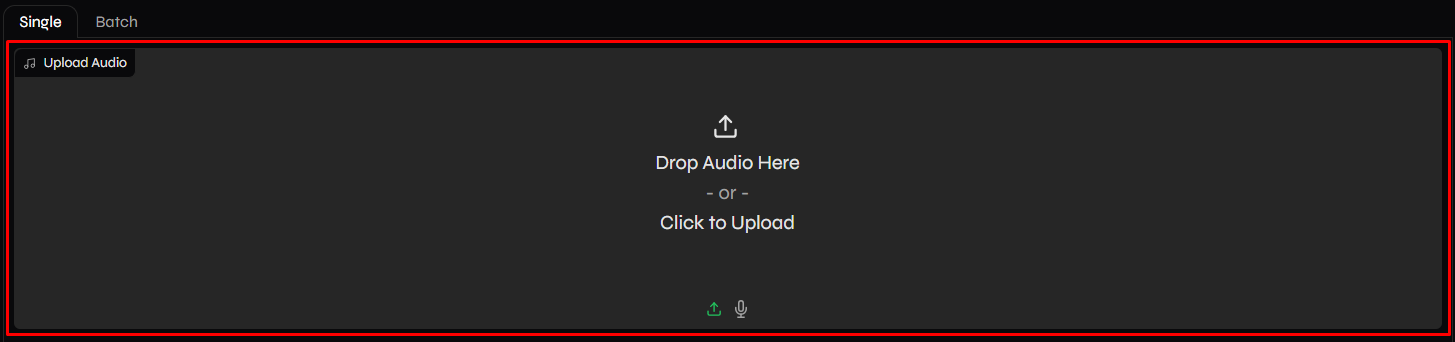
-
Then select it in the dropdown below.
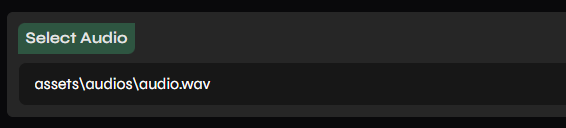
In batches -
Go to the Batch tab.
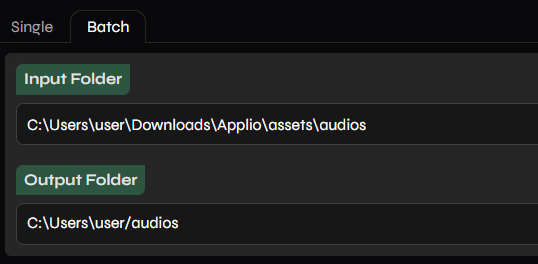
-
In the
Input Folderbar, paste the path folder containing the audios.In
Output Folderyou can paste a path folder for the results.Ensure the paths don't contain spaces/special characters.
-
3. Modify settings. (optional)
-
Unfold
Advanced Settingsif you wish to modify the inference settings for better results, or to determine the output folder.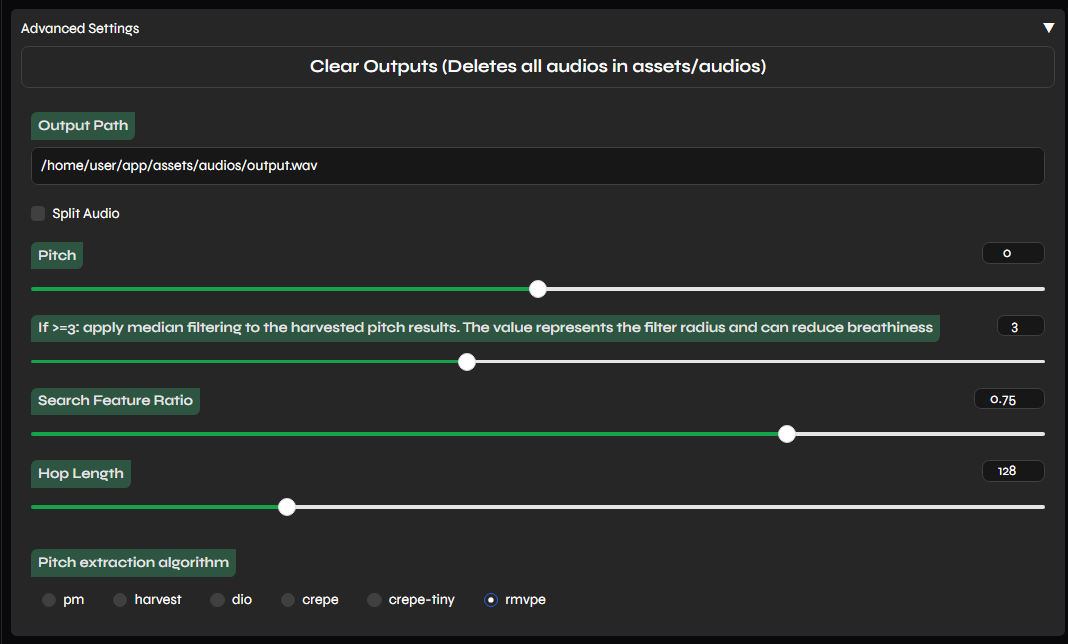
4. Convert.
-
Click
Convertat the bottom. The audio will begin to process.
The processing time will mainly depend on your specs, length of audio & the algorithm picked. -
Once it's done, you can hear the results in the Export Audio box below.
By default the output files will be in the "audios" folder:
\ApplioV3.0.7\assets\audios
Training
The training guide will be centered around using TensorBoard. Read about it first if you haven't already.
If you encounter an issue, be sure to read the Troubleshooting chapter.
a. Model Name
-
Go to the
Traintab. Input a name for your model inModel Name.
Don't include spaces/special characters.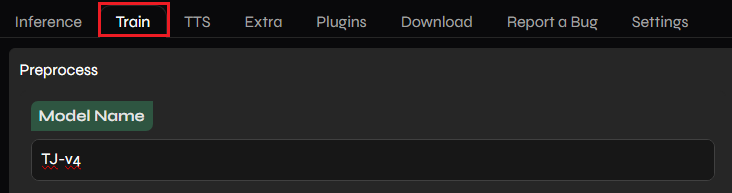
b. Dataset Path
-
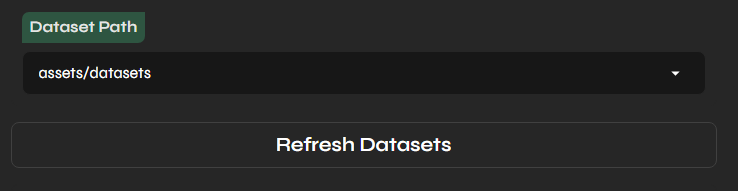
Paste the path file of your dataset in the Dataset Path bar. Ensure the path doesn't contain spaces/special characters.
c. Sampling Rate
-
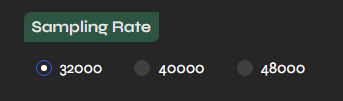
Select your dataset's sample rate. If you don't know the amount, click here.
d. Preprocess Dataset
-
Ensure RVC Version is set as
V2& clickPreprocess Dataset.It'll finish when the output box says
preprocessed successfully.
a. Pitch extraction algorithm
-
Select the algorithm you want. Use either
RMVPE(most suggested) orCrepe. Applio removed pm. dio and harvest as they are outdated.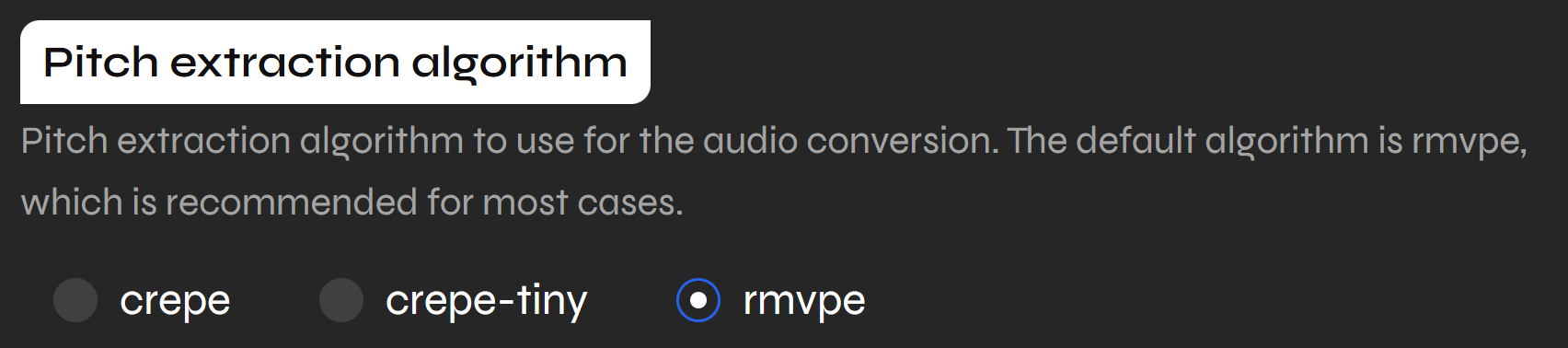
b. Embedder Model
-
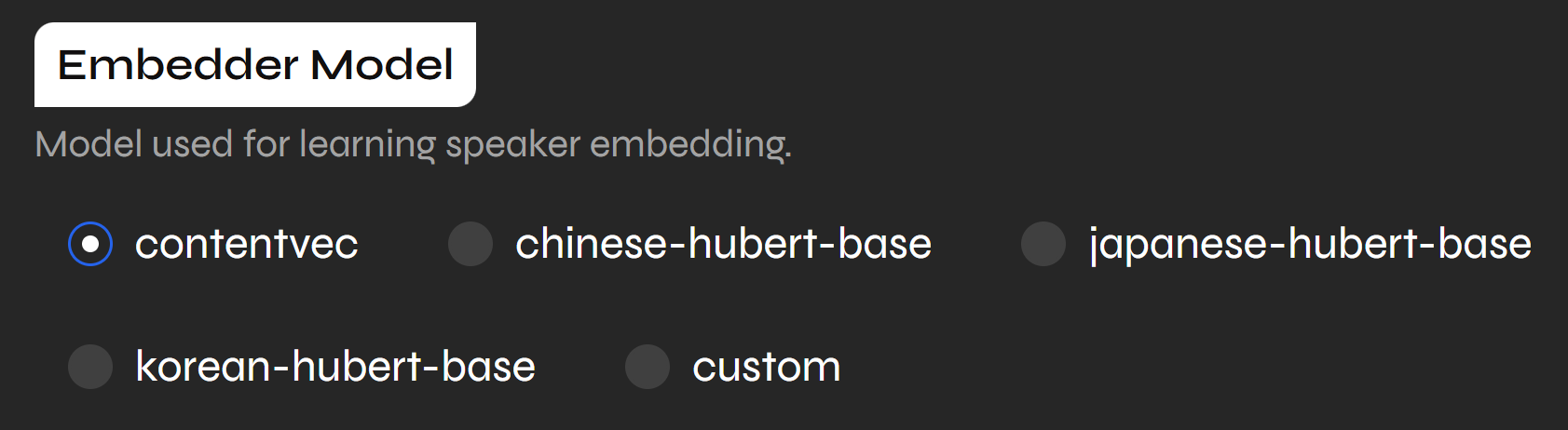
Select the Embedder Model you want. Contentvec is the most used.
c. Custom Embedder Model
-
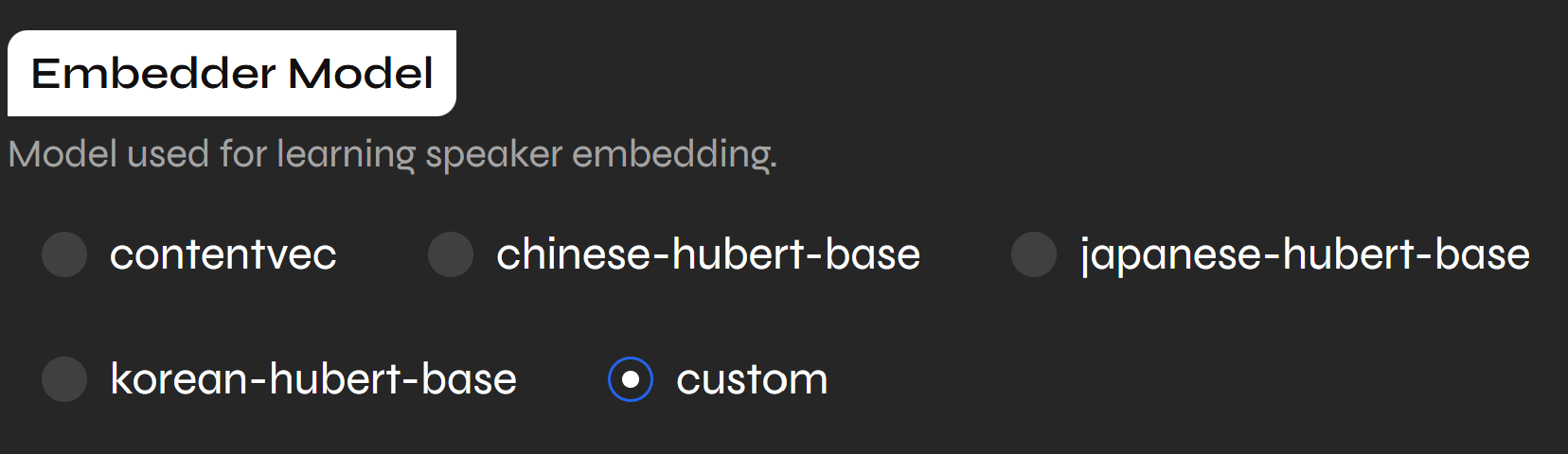
If you select "custom" for embedders, you can add your own, like Spin or Spin V2 (which seems to have better pronunciation than contentvec and better for realtime as it handles context differently)
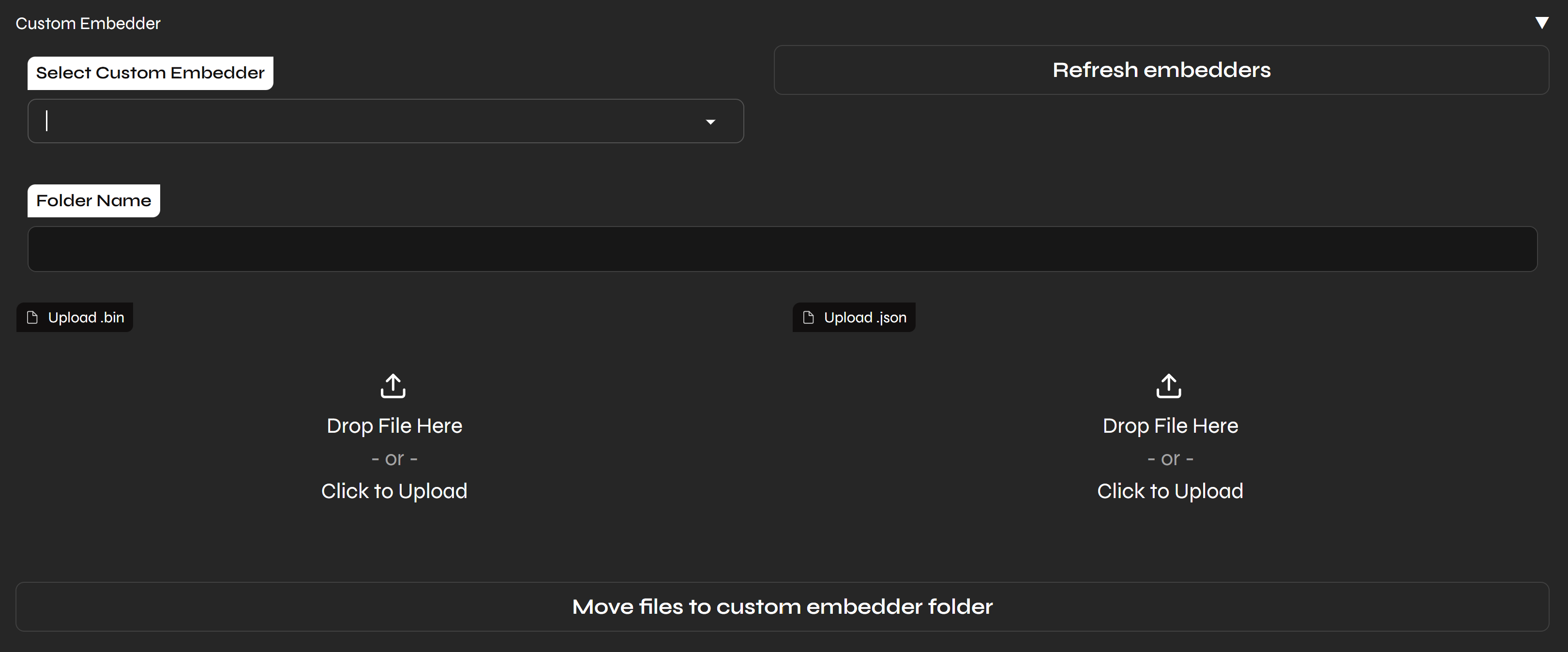
- Give it a Folder Name, like "spin".
- Upload the .bin and .json files, which for example you can find them at https://huggingface.co/IAHispano/Applio/tree/main/Resources/embedders/spin for spin.
- Click "Move files to custom embedder folder".
- After you added your custom embedder, Refresh Embedders and select it from the Dropdown menu at the left of the refresh embedders button.
d. Extract Features
-
Press Extract Features.
It'll finish when it saysextracted successfully.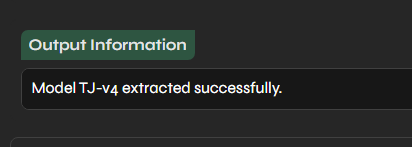
a. Batch Size
-
If you are a newbie, use
8. But in case your dataset is short (around 2 minutes or less), use4.
b. Save Every Epoch
-
Frequency of the saving checkpoints, based on the epochs.
-
If you are a newbie, simply leave it at
15, but if you wish to be percise set it to1.
-
E.g: with a value of
10, they will be saved after the epoch 10, 20, 30, etc.
c. Total Epoch
-
Input the total amount of epochs (training cycles) for the model.
-
But since we'll use TensorBoard, use an arbitrarily large value like
1000
d. Use Pretrained Models
- RVC uses the Orignal Pretrain by default (
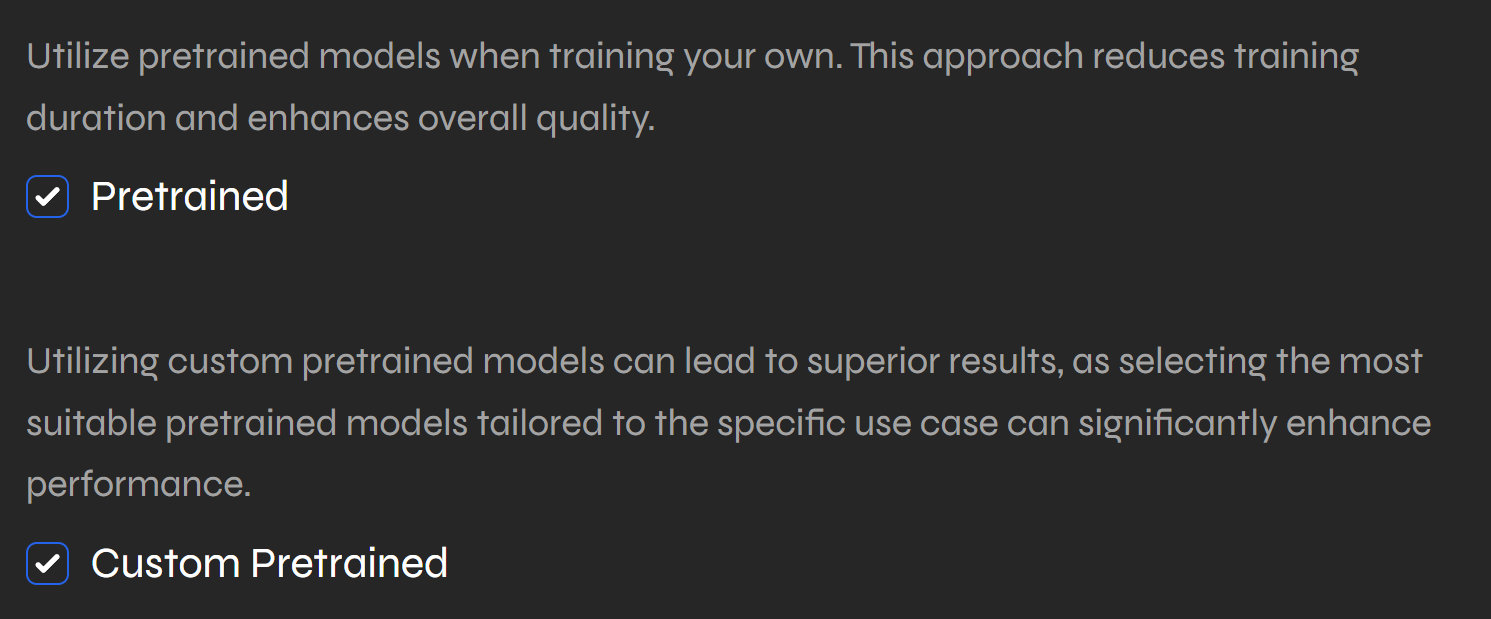
Pretrainedis always checked, unchecking it is highly not recommended as you won't use even the Original Pretrain and train from scratc) to significantly reduce training duration and enhance overall quality. You can use the original pretrain, or community made models downloaded via the Download tab or upload them yourself.
- Download Custom Pretrained Models (Optional):
- Go to the Download tab, go to the download custom pretrain, and select the community made ones like TITAN and for which sample rate you need.
- To use a pretrained model that you downloaded from the Download tab, simply check the
Pretrainedbox. - If you can't find the pretrain you want, you can check AI HUB's
#pretrain-modelsor here
-
Use Custom Pretrained Models (Optional):
- Check the
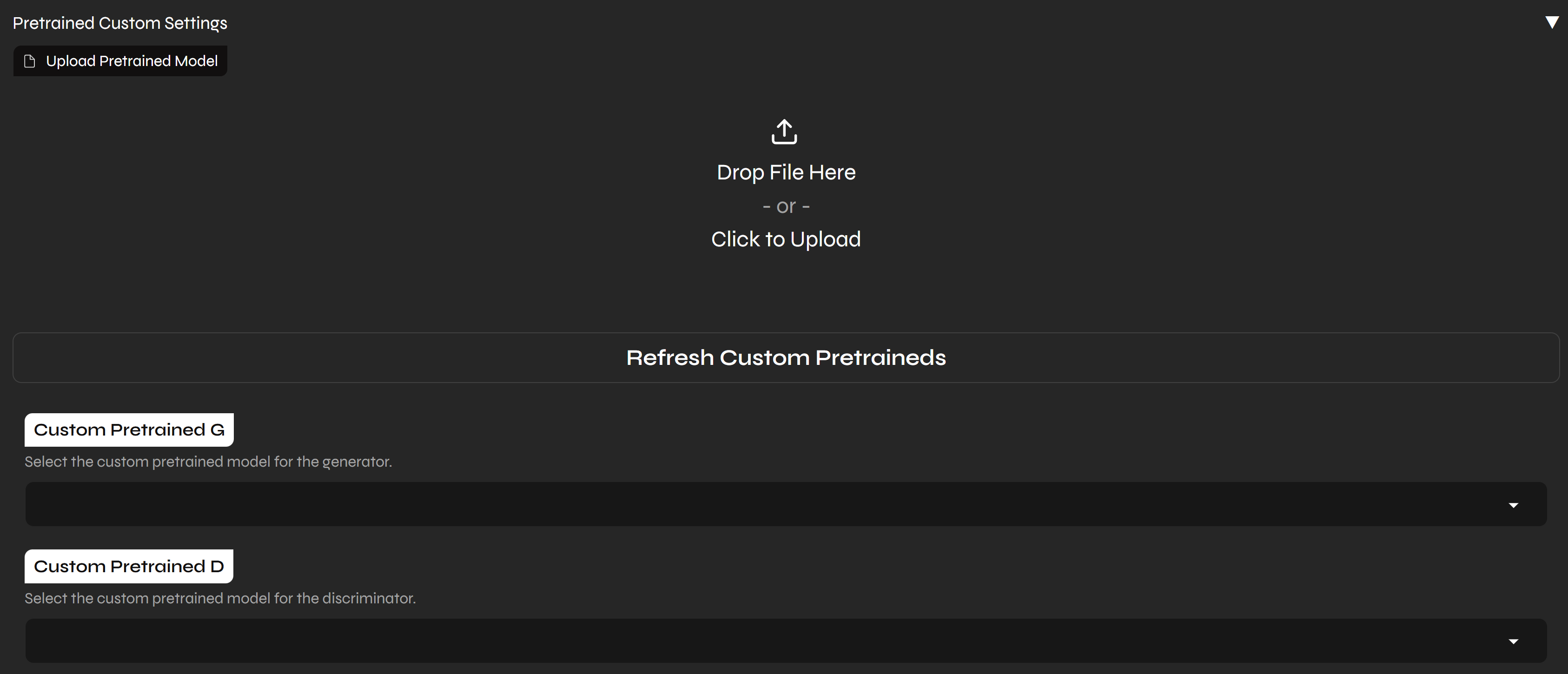
Custom Pretrainedbox to use your own files. This will open thePretrained Custom Settingssection.
- Upload: Click
Upload Pretrained Modelto open a file dialog. Here, you can drag and drop your files or click to upload the Generator (G) and Discriminator (D).pthfiles. This is for when you want to upload your own pretrains which aren't in the community download pretrains tab. - Select: After uploading, click
Refresh Custom Pretraineds. Then, select your custom generator and discriminator from theCustom Pretrained GandCustom Pretrained Ddropdown menus. These dropdowns will also show any custom pretrained models you have downloaded from the Download tab.
- Check the
e. Sync Graphs
-
Sync graphs trains a single epoch and sets the log interval to the amount of steps that epoch trained for.
-
Doing this makes the Tensor Board's graphs accurate.

f. GPU Settings
-
If you have multiple GPUs, tick
GPU Settingsto use a specific one for the training.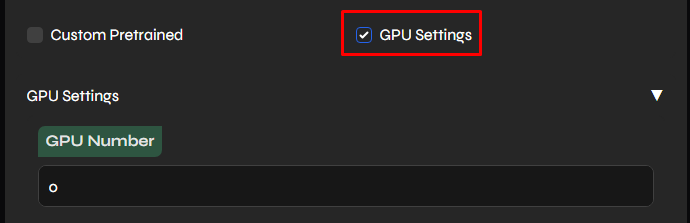
g. Generate Index
- Click
Generate Index. This will create the model's .INDEX file.
h. Start Training
-
Press
Start Trainingto begin the training process.
-
To open TB, execute
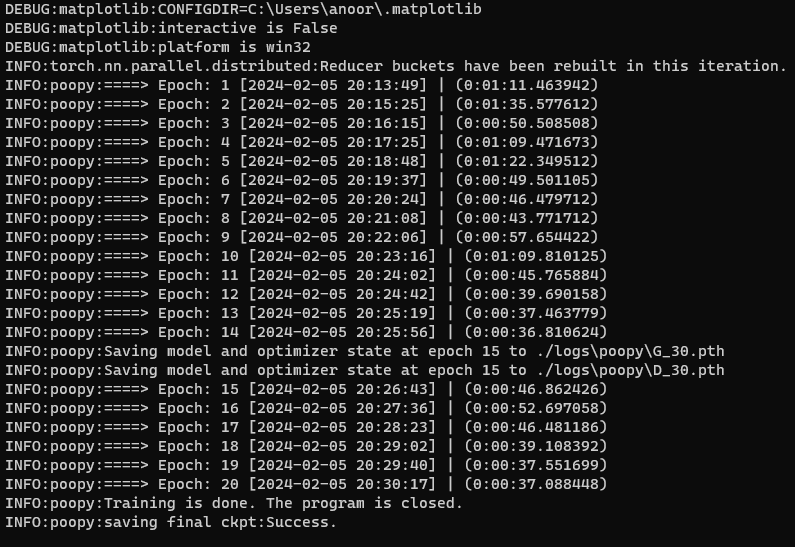
run-tensorboardin Applio's folder. Remember to monitor it, as well as the console just in case.
-
The latter will show you errors if they happen, and information about the epochs & checkpoints.
a. Stop training
-
When you're very sure of overtraining, you can stop training by going to the
Settingstab & pressRestart Applio.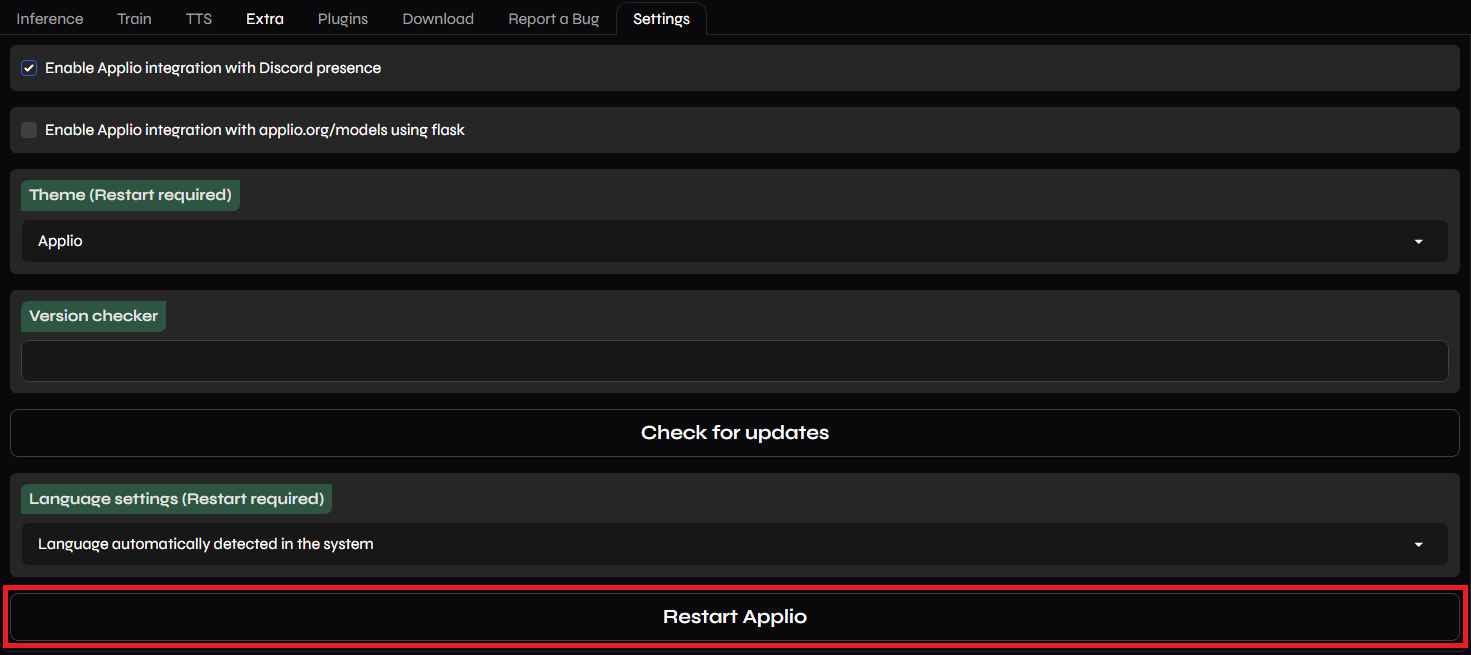
b. Get the INDEX
-
Create a new folder anywhere named as the model.
-
Open Applio's folder, go to
logs, and open the folder named as the model.
-
Select the .INDEX named
added_& move it to your newly made folder.
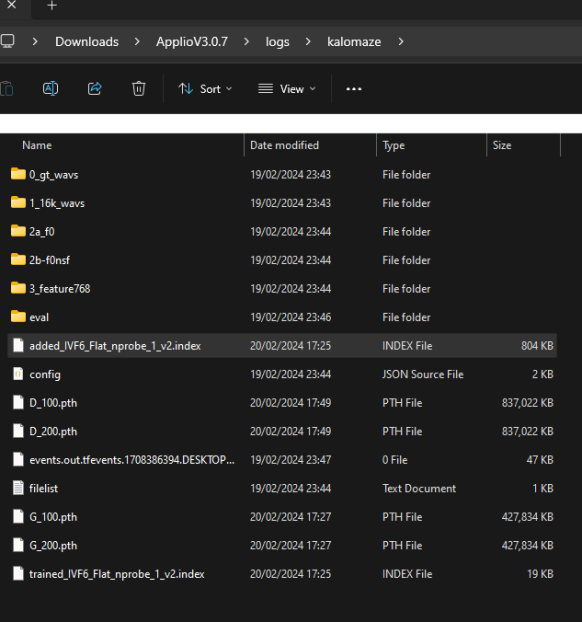
c. Get the PTH
-
In said folder you'll also find all the checkpoints.
-
Select the one closest to before the overtraining point, and move it to the new folder.
The checkpoints will be organized with this format: ModelName_Epoch_Step.pth
Example:arianagrande_e60_s120.pth
- And that's all, have fun with your model. To test it, do a normal inference as usual.
-
In case the training finished but the model still needed training, you don't have to start from scratch.
-
Simply enter the same settings & criteria that you've previously inserted. You don't have to do the preprocess or train the .INDEX again.
-
You can change the save frequency, or increase the Total Epoch amount in case you didn't input enough before.
-
Begin training again & remember to monitor TB & console like before.
TTS
+ with any RVC model
-
Applio is also known for having one TTS tool by default, with plenty of voices to choose for.
-
You can also use it with RVC models & apply the inference settings if you wish.
-
Aditionally, you can download the Eleven Labs TTS plugin.
Instructions:
-
Go to the TTS tab.

-
If you want to use an RVC model, download it, go to TTS, click
Refresh& select it in Voice Model & Index File.
- To modify the inference settings or the output folder for the TTS/RVC audio, unfold
Advanced Settings.
-
In TTS Voices select the voice of your desired language, accent & gender.
In Text to Synthesize input your text. Then click
Convert.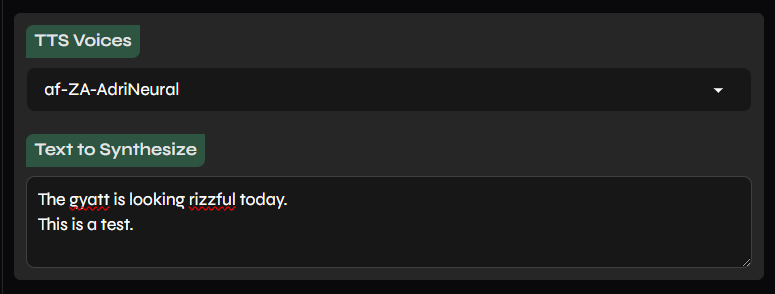
- If you are using an RVC model, select a voice that matches the model the most, to guarantee great results.
-
Once it's done, you'll be able to hear the result in the Export Audio box. By default, the output audio will be in the "audios" folder. <
\ApplioV3.0.7\assets\audios>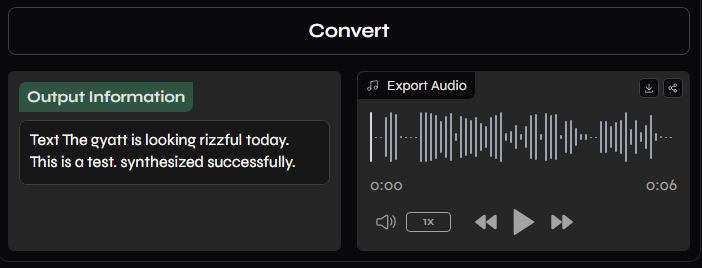
Update
To Update Applio, you need to firstly Save your audios and models, then Delete the current Applio folder and reinstall the latest version.
Voice Blender
The Voice Blender (also known as Model Fusion) allows you to combine the weights of two different RVC models to create an entirely new, hybrid voice. This is ideal for creating unique characters or fine-tuning a model's tonal characteristics.
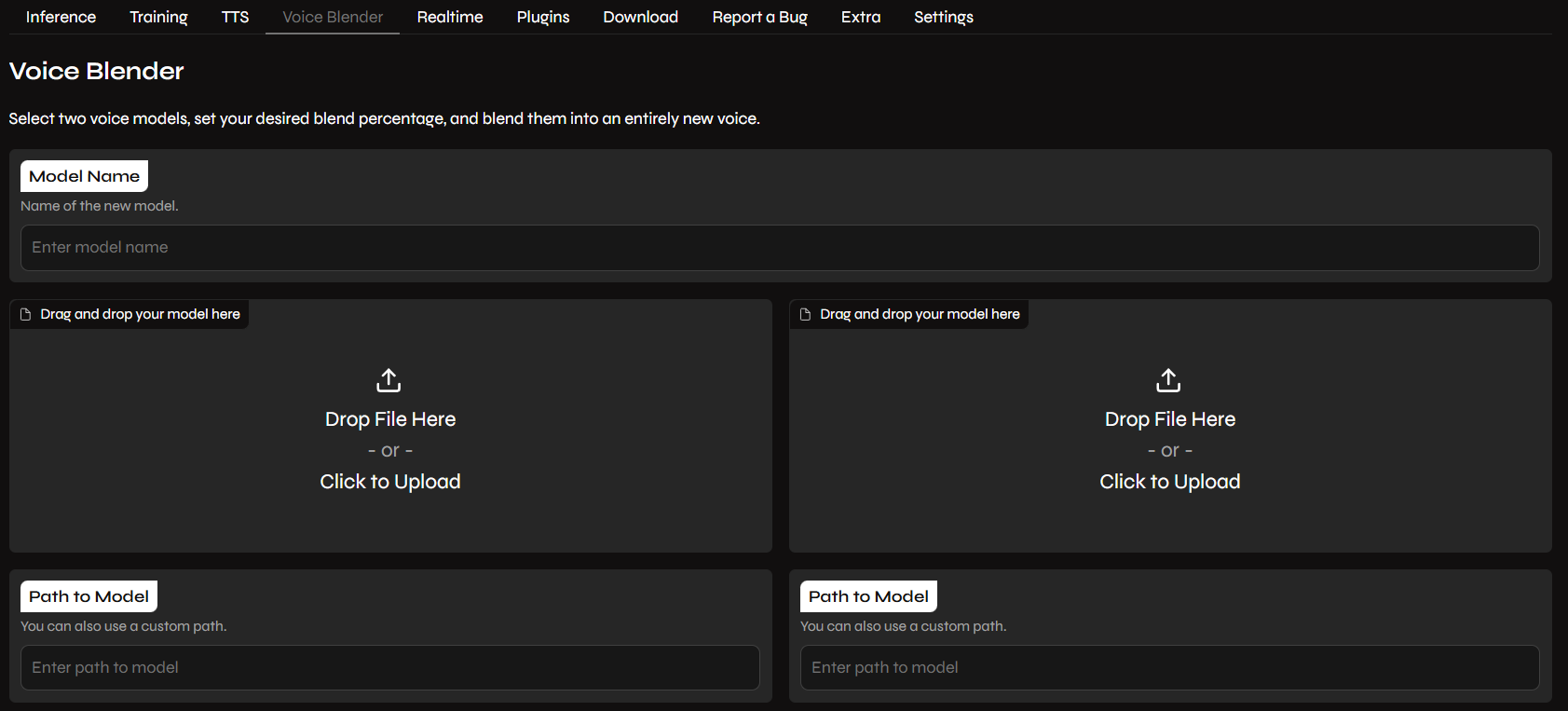
1. Setup Models
- Go to the Voice Blender tab.
- Model Name: Enter the name for your new hybrid model.
- Upload Models: You can either drag and drop the two
.pthfiles into the upload boxes or paste their local file paths in the "Path to Model" bars.
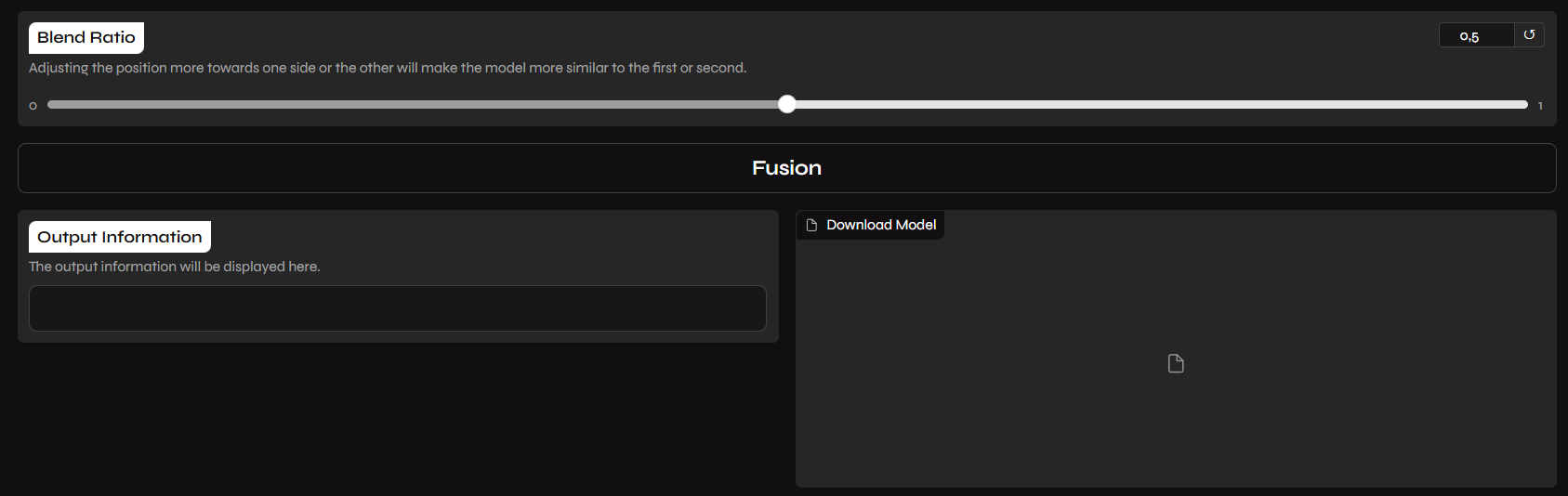
2. Blend & Fuse
- Blend Ratio: Adjust the slider to determine the influence of each model.
- A value of
0.5is a perfect 50/50 split. - Moving it closer to
0favors the first model, while1favors the second.
- A value of
- Fusion: Click the
Fusionbutton to begin the process.
3. Export Information
- Output Information: Once finished, the console log and the output box will confirm the successful creation of the model.
- Download/Save: The new fused model will be generated and can be found in your Applio
logsor downloaded directly from the interface.
Index Blending
Note that Voice Blender only merges the .pth (weight) files. It does not merge .index files. To get the best results with a fused model, you may need to use it without an index or create a new index using the training tab with a combined dataset.
Realtime Voice Conversion
Beyond offline inference, Applio features a powerful built-in Realtime tab, allowing you to convert your voice live during calls, streaming, or recordings.
- It uses the same RVC technology but is optimized for low-latency performance.
- Features include Voice Activity Detection (VAD), input/output device selection, and advanced performance tweaking.
For a full step-by-step setup and configuration guide, please visit the Applio Realtime Guide.
Extra
-
Applio has an Extra menu, containing an audio analyzer.
-
Making it convenient for determining the sample rate of datasets when training models.
-
It also contains the model fusion tool, ideal for advanced users.
Audio Analyzer:
-
Go to the Extra tab & press the upload box to input your audio. Or simply drag & drop.
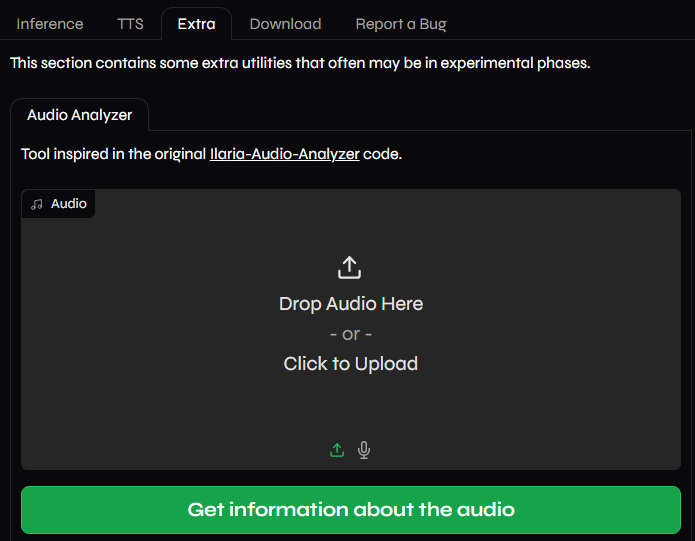
- Once it's done uploading, click
Get information about the audio.
-
In Sampling rate you'll see the audio's full sample rate. Use said value for training.
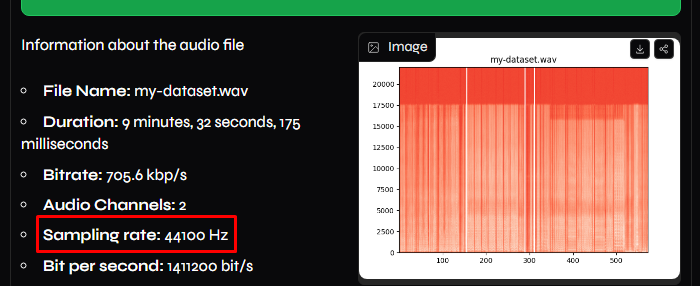
WARNING:
If the frequencies don't reach the top of the spectrogram, see at which number peaks & multiply it by 2.
-
Example:
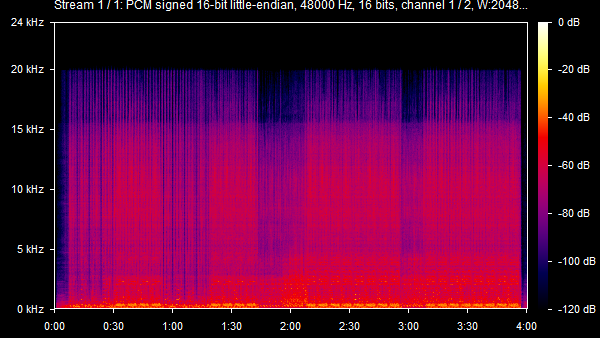
Here it reached 20 kHz. Doubling it gives 40kHz. Therefore the ideal target sample rate would be
40k
Plugins
-
Plugins are components that you can add to Applio, that add new features & enhance your experience.
-
These are made by the public, and are free & easy to install.
-
You can find them on their GitHub page. More will be added in the future.
Installation:
-
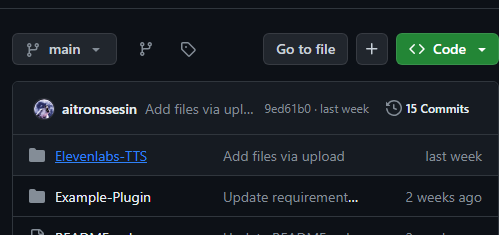
Access their GitHub page & click on the name of the plugin you want.
-
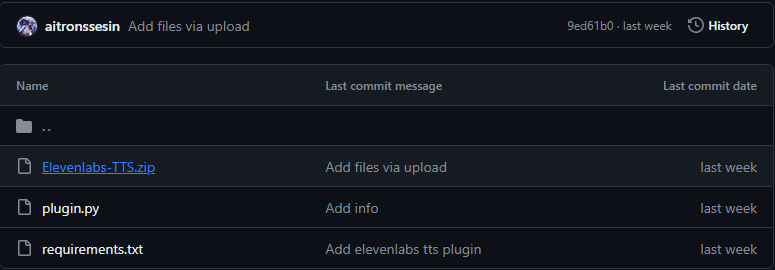
Click on the ZIP file.
-
Click on the download button on the right. This will download the ZIP file of the plugin.

-
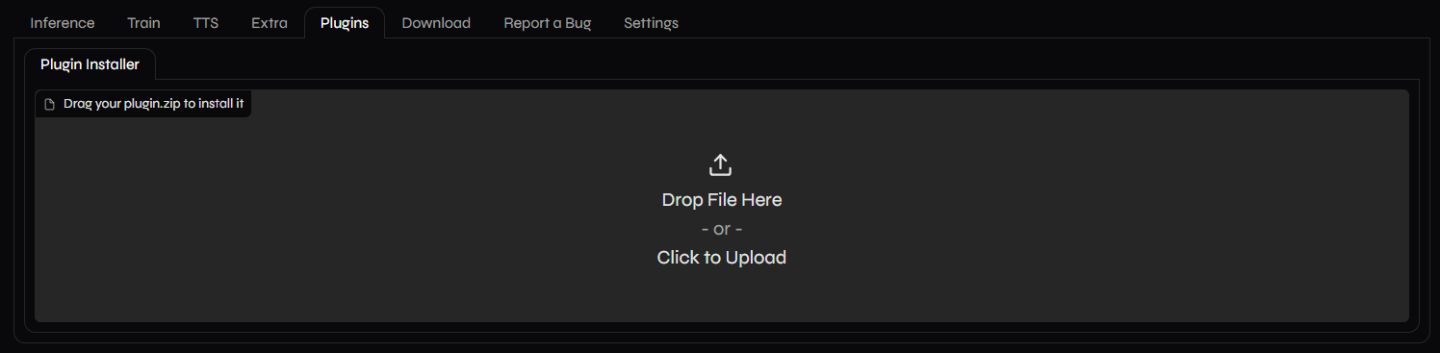
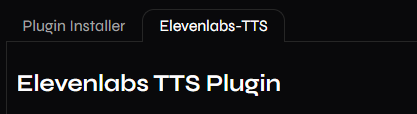
Open Applio & head over to the Plugins tab. Drag & drop the ZIP file to the upload box.
-
You will be able to see its installation process in the console.

-
Go to the settings tab & click Restart Applio at the bottom. Then you'll be able to see the plugin in the Plugins tab.
Troubleshooting
If you are experiencing lag, stuttering, or slow training speeds, disable HAGS (Hardware-Accelerated GPU Scheduling) on Windows 10/11. It is known to interfere with VRAM management for Local AI apps. Read the HAGS Glossary Entry for the full explanation and how to disable it.
-
If it's lower than 32k: select
32k. -
If it's 44.1k: select
40k. -
If i'ts higher than 48k: select
48k.
- This a phenomenon called artifacting. To fix it, read here.
- Report your issue here.